Quick answer
Gmail rejects emails when the message looks unauthenticated, misaligned, suspicious, or too risky for the recipient. The first checks are SPF, DKIM, DMARC, DNS, blacklist status, and SMTP TLS. Those checks do not prove inbox placement, but they tell you whether the public technical baseline is broken before you chase reputation or content fixes.
What Gmail is usually reacting to
Gmail evaluates more than one signal before accepting, rejecting, or filtering a message. The public technical signals you can inspect are MX routing, SPF authorization, DKIM signing, DMARC policy and alignment, public blacklist status, and transport security. Private signals such as recipient engagement, historical reputation, complaint rate, and message content are not visible from DNS alone.
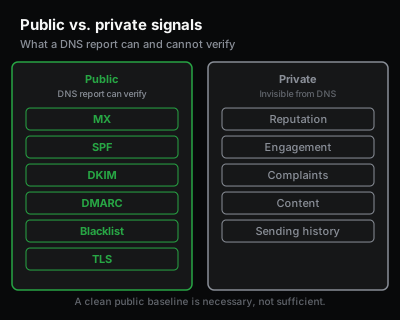
This is why two senders can see different outcomes with similar-looking records. One domain may pass authentication but have too little sending history. Another may have a technically valid SPF record that does not include the real outbound platform. A third may publish DMARC but fail alignment because the visible From domain does not match the domain that passed SPF or DKIM.
Start with the checks that are public and deterministic. If those fail, Gmail has an obvious reason to distrust the message. If those pass, the problem may be reputation, volume, content, recipient behavior, or a provider-specific classification that no DNS lookup can prove. When the technical baseline is clean and mail still lands in spam, why are my emails going to spam covers those provider-agnostic causes in the order worth checking.
Step 1: Check whether Gmail sees the mail as authenticated
Email authentication is the first baseline. Google's sender guidelines expect senders to authenticate with SPF or DKIM, and bulk senders have stricter requirements around SPF, DKIM, DMARC, alignment, and one-click unsubscribe behavior. The exact obligations depend on sender type and volume, so confirm the current Google documentation before changing enforcement policy.
SPF is a DNS TXT record that authorizes which servers can send mail for a domain. If your message leaves through Google Workspace, Microsoft 365, SendGrid, Mailgun, Postmark, or another platform, the SPF record must include the real outbound source. MX records do not define outbound senders; they tell other servers where to deliver inbound mail.
DKIM is a cryptographic signature system. The sending platform signs the message, and DNS publishes the public key under a selector. A domain can have a valid DKIM DNS record but still send unsigned messages if signing is not enabled in the mail platform. DNS proves the key exists; the real message header proves whether signing happened.
DMARC is a policy and reporting layer over SPF and DKIM alignment. A message can pass SPF and pass DKIM but still fail DMARC if the authenticated domain does not align with the visible From domain. This is the common "everything passes, but DMARC fails" case that catches teams after they add a third-party sender.
Use the SPF, DKIM, and DMARC results together. Looking at only one record often leads to the wrong fix. The email authentication explained guide walks through what each protocol does, how alignment works, and the common failure shapes for each signal.
Step 2: Separate rejection from spam-folder placement
A Gmail rejection is not the same problem as Gmail putting mail in the spam folder. A rejection means Gmail did not accept the message for delivery, usually returning a bounce or SMTP error to the sender. Spam-folder placement means Gmail accepted the message but classified it as unsafe or low-quality for that recipient.
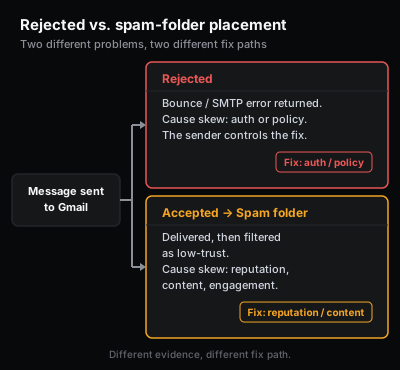
Authentication failures are more likely to produce hard failures or policy rejections. Reputation, volume, content, and engagement problems are more likely to produce spam-folder placement. There is overlap, but the fix path is different.
If you have an SMTP error code, keep it. The code often tells you whether Gmail is complaining about authentication, policy, rate, reputation, or message structure. If users say "it went to spam", ask for message headers from the delivered copy. Headers show SPF, DKIM, DMARC, and receiving-system notes that are not visible from DNS alone. Other mailbox providers use their own rejection-code families — why Outlook blocks emails covers the Microsoft 5.7.x NDR taxonomy and the Defender, SCL, SNDS, and JMRP signals behind Microsoft 365 and Outlook.com rejections.
Step 3: Check DMARC alignment before tightening policy
DMARC alignment is one of the most common hidden causes of Gmail trouble. Alignment means the authenticated domain used by SPF or DKIM matches the visible From domain closely enough for the DMARC policy.
For example, a company might send invoices from billing@example.com through an ESP that signs DKIM with esp.example.net. DKIM may pass for the ESP domain, but DMARC may still fail for example.com unless the ESP is configured to sign with an aligned domain. Similar issues happen when bounce-path domains, subdomains, or forwarding systems do not match the visible sender.
Do not jump straight to p=reject because a checklist says DMARC is important. A strict policy can block legitimate mail if your senders are not aligned. A safer rollout is to verify all real sources, confirm alignment, review reports if you have them, then move policy from monitor-only toward enforcement.
Relaymetry can inspect the public DMARC record and explain what the policy says. It cannot see your aggregate DMARC reports from a public DNS lookup.
Step 4: Check blacklist status without overreading it
Public blocklists are one signal. A listing can hurt delivery, especially if a receiver uses that list or if the listing reflects a real sending problem. A clean result does not guarantee Gmail inbox placement because Gmail also uses its own reputation systems.
If your sending IP or domain is listed, do not request delisting first and investigate later. Fix the cause first: compromised mailbox, old shared IP reputation, sudden bulk send, bad list import, infected site, or misconfigured forwarding. Then follow the list operator's delisting process.
If all public blocklists look clean but Gmail still rejects or filters mail, move to authentication, reputation, content, sending history, and Google Postmaster Tools. Public blacklist checks are useful, but they are not Gmail's complete internal model.
Step 5: Check whether the domain is new, quiet, or suddenly louder
New and low-volume domains can pass every public authentication check and still struggle. Gmail has little history for the sender, so sudden volume, cold outreach, imported lists, or unusual recipient behavior can look risky.
This is the common "technical perfection does not matter" frustration from operators. The better framing is narrower: technical checks are necessary but not sufficient. They remove obvious reasons for rejection. They do not create reputation by themselves.
If you recently switched ESPs, changed IPs, moved DNS, added a new sending subdomain, launched a product update campaign, or sent a larger-than-usual batch, treat that as part of the incident. The DNS records may be correct now, but provider reputation can lag behind configuration.
Step 6: Do not confuse MX records with outbound delivery
MX records route inbound mail to your domain. They do not authorize your outbound senders. A common SPF mistake is assuming the server in MX records is also the server sending outbound mail.
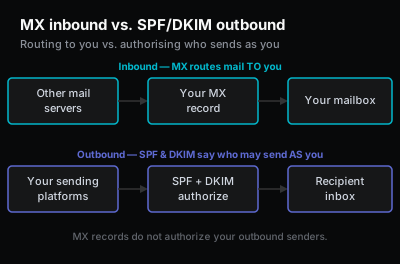
If your domain receives mail at Google Workspace but sends product emails through Postmark, your SPF and DKIM setup must account for Postmark. If you send transactional mail through one platform and newsletters through another, both sending paths need authentication and alignment.
Use MX lookup to confirm where mail is delivered to you. Use SPF, DKIM, and DMARC checks to confirm who can send as you.
Step 7: Check SMTP TLS and MTA-STS as transport signals
SMTP TLS is about encrypted transport between mail systems. It is not an inbox-placement guarantee, but broken TLS posture can still create delivery friction or security warnings in some paths.
MTA-STS lets a receiving domain publish a policy that asks senders to require TLS for inbound delivery. TLS-RPT lets a domain receive reports about TLS delivery failures. These are not substitutes for SPF, DKIM, or DMARC. They are transport-security signals that belong in a full domain health report.
If Gmail-specific rejection is your only issue, TLS may not be the primary cause. Still, checking it helps avoid a blind spot when several small problems combine into one delivery incident.
A practical Gmail rejection workflow
Use the bounce or user report to choose the first diagnostic path. Do not start by editing every DNS record at once. That makes the incident harder to understand and can create new failures while the original one is still unproven.
If Gmail returned an SMTP error that mentions unauthenticated mail, authentication failure, or policy, start with SPF, DKIM, and DMARC. Check the public records first, then inspect the actual message headers if a delivered sample exists. The public records show the intended setup; headers show how Gmail evaluated a specific message.
If Gmail accepted the message but placed it in spam, start with the full technical baseline, then move to reputation and content. A clean SPF/DKIM/DMARC result does not mean the message is wanted by recipients. It means Gmail can authenticate the domain. That is necessary, but inbox placement also depends on behavior and history.
If Gmail rejects only one stream, compare that stream with working streams. Transactional mail, product updates, newsletters, and cold outreach often use different platforms, IPs, DKIM selectors, return-path domains, tracking links, and sending volumes. The domain can look healthy at the top level while one sender path is broken.
If Gmail rejects mail after a migration, focus on changed infrastructure. New DNS host, new ESP, new IP pool, new tracking domain, new DKIM selector, new return-path domain, and new From domain are all suspect. Do not assume that because the old platform was authenticated, the new platform inherited the same trust.
Common scenarios and the likely first check
Gmail says the message is unauthenticated
Start with SPF, DKIM, and DMARC. Look for missing records, invalid SPF syntax, disabled DKIM signing, a wrong DKIM selector, or DMARC alignment failure. If a third-party ESP sends the message, verify that it is authenticating your domain, not only its own.
Gmail rejects only newsletter mail
Check whether the newsletter tool is included in SPF and signs DKIM with your domain. Then check volume, list quality, and links. Newsletter tools often add tracking domains and link wrappers that are different from your transactional mail path.
Gmail rejects after moving DNS
Check that the new DNS host contains every old mail-related record: MX, SPF, DKIM selectors, DMARC, MTA-STS, TLS-RPT, and any provider verification records. DNS migrations often copy the obvious MX record and miss DKIM selectors because selectors look like obscure subdomain TXT records.
Gmail rejects after switching ESPs
Check SPF authorization, DKIM signing, return-path alignment, and link tracking domains for the new ESP. Then check whether the new ESP changed IP reputation or sending cadence. Authentication can be correct while the new path still lacks positive history.
Gmail sends a new domain to spam
Check public technical health first, then treat reputation as the likely remaining problem. New domains often lack enough positive history for aggressive mailbox-provider filters. Keep volume controlled, send to engaged recipients, and avoid mixing cold outreach with transactional mail.
Gmail spam placement started after a big send
Check volume and engagement before rewriting DNS. A sudden increase can change how Gmail evaluates the sender, especially if bounces, complaints, or low engagement increased at the same time. Authentication can remain valid while reputation drops.
Evidence to collect before escalating
Collecting the right evidence saves time. For Gmail issues, keep:
- The full bounce text, including SMTP code and enhanced status code.
- The visible From domain.
- The sending platform used for the failed message.
- A copy of the message headers if Gmail accepted the message.
- The recent change that preceded the issue: DNS move, ESP switch, new domain, volume increase, campaign, signature/link change, or list import.
- Current SPF, DKIM, and DMARC results for the From domain.
- Public blacklist status for the sending domain or IP when known.
- Google Postmaster Tools screenshots or metrics if the domain has enough volume.
Do not paste private message bodies or customer data into public tools. Public DNS records are enough for the first technical baseline. Headers can contain sensitive routing and recipient information, so redact before sharing with outside vendors or forums.
What this does not prove
Relaymetry can prove whether public DNS and SMTP-facing signals look correct from the outside. It can inspect MX, SPF, DKIM, DMARC, public blacklist status, and TLS-related posture. It can explain the result in one place and point to the likely next check.
Relaymetry cannot prove Gmail's private sender reputation, recipient engagement, spam complaint history, message-content score, or every provider-specific classification. If the report is clean and Gmail still filters the message, your next evidence should come from Gmail message headers, Google Postmaster Tools, sending-volume history, and campaign/content review.
FAQ
Can Gmail reject email even when SPF, DKIM, and DMARC pass?
Yes. Passing authentication removes a major reason for rejection, but Gmail can still react to reputation, volume, content, recipient behavior, or policy-specific signals.
Is the Promotions tab the same as spam?
No. Promotions classification is not the same as spam-folder placement or SMTP rejection. DNS fixes can help with authentication and trust, but they do not guarantee Primary-tab placement.
Should I change DMARC to reject immediately?
Not unless you have verified every real sending source and confirmed alignment. A strict DMARC policy can block legitimate mail when third-party senders are not configured correctly.
Why does Gmail say unauthenticated?
Usually because SPF, DKIM, or DMARC did not pass in the way Gmail expected for that message. Check the public records, then inspect the actual Gmail message headers or bounce details.
What should I check first?
Start with the full domain report. If a specific failure appears, follow that path: SPF for outbound authorization, DKIM for signing, DMARC for alignment and policy, blacklist for public reputation signals, MX for inbound routing, TLS for transport posture.